Do you need help?
Everything you need to know is at your fingertips. Browse the guide articles and find the appropriate answer.
Adding Suppliers
We can add and save suppliers through the Suppliers screen within the Purchases section, then enter the supplier's basic details and save them.
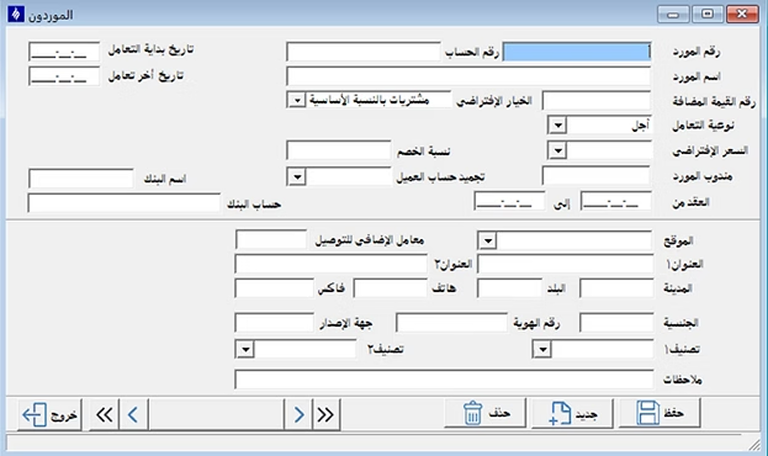
After that, complete the supplier details, contact information, and required commercial data, then click Save.
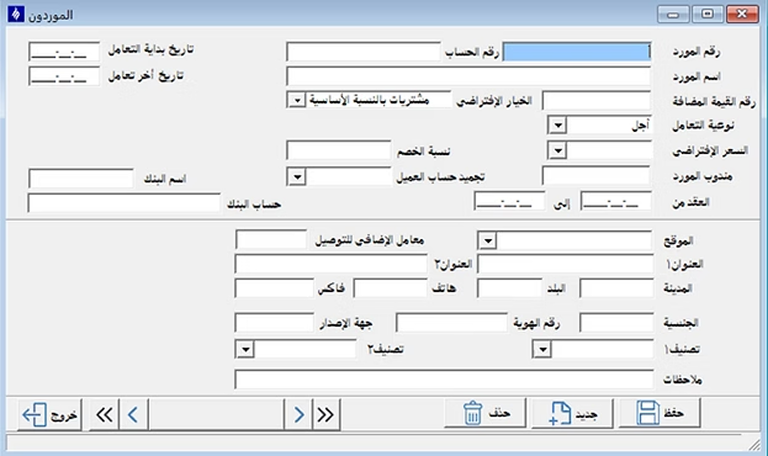
Material Request
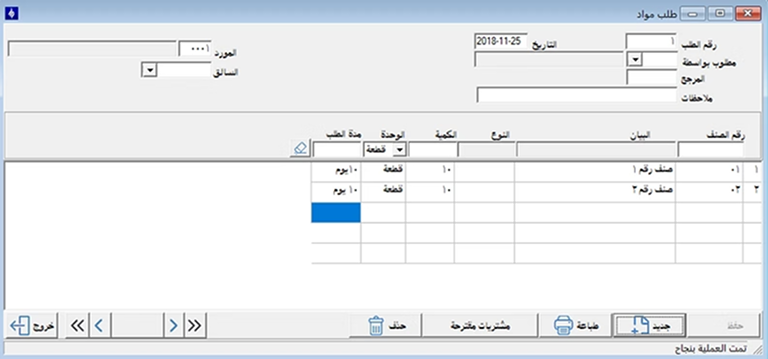
From the Purchases menu, open the Material Request screen, select the required data, and add the items and quantities to be requested.
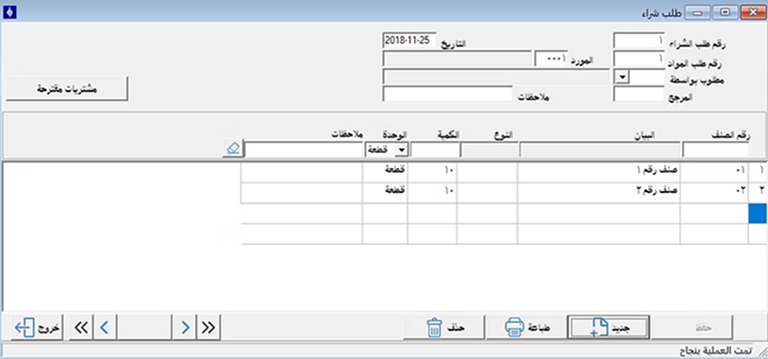
Purchase Request
From the Purchase Request screen, record the required items and quantities for purchase, enter the related request details, and then save the transaction.
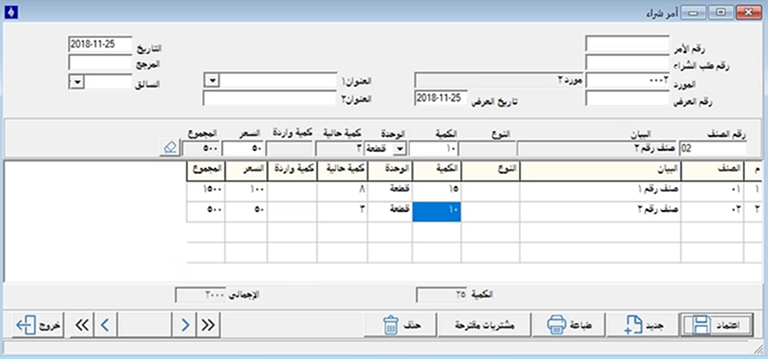
Purchase Order
A Purchase Order is created from the Purchases section, where you select the supplier, specify items, quantities, prices, and remaining order details before saving.
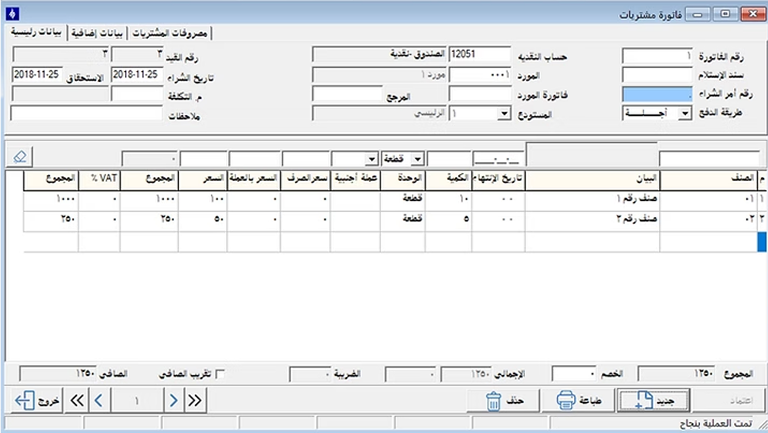
Purchase Invoice
From the Purchases menu, open Purchase Invoice, select the supplier, enter the invoice details, items, quantities, and prices, and then save the invoice.
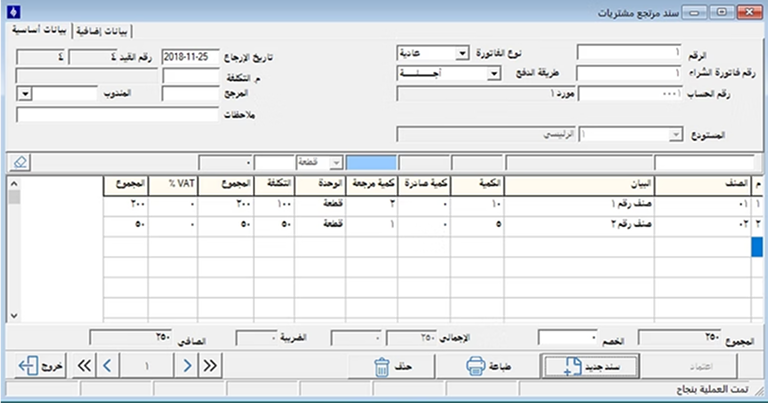
Purchase Return
The Purchase Return screen is used to return items from a previous purchase invoice by specifying the supplier, items, and quantities to be returned.
Currencies File
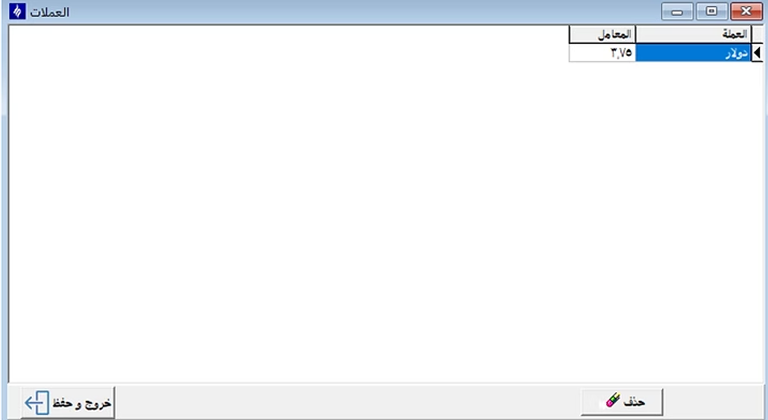
From the Currencies file, you can define the currencies used in the system and set the details for each currency to be used in purchase transactions.
Purchase Reports
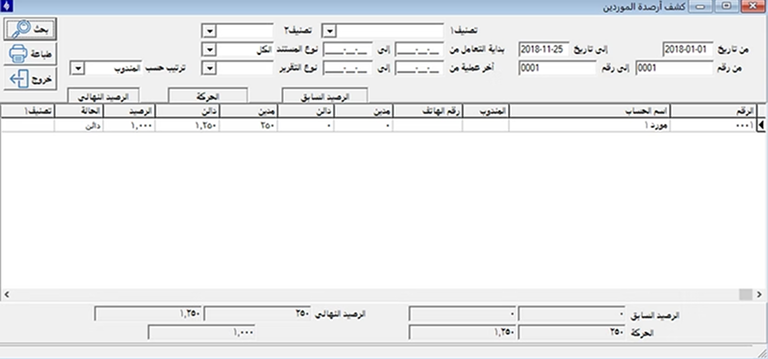
Purchase reports can be accessed from the Reports menu, where you can define the period, supplier, or required report options and view the results.
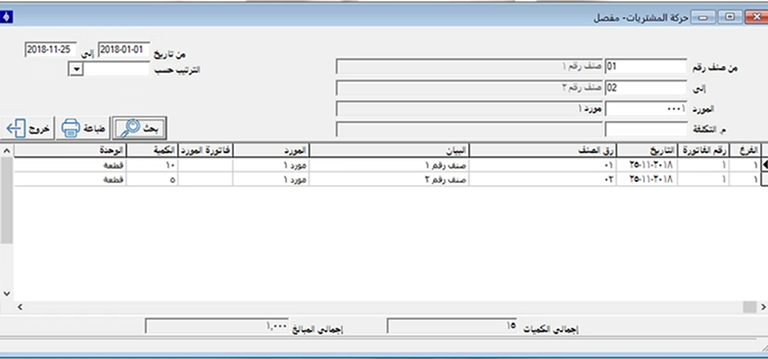
Additional report options can also be used to obtain broader details regarding purchase transactions and supplier movements during the selected period.
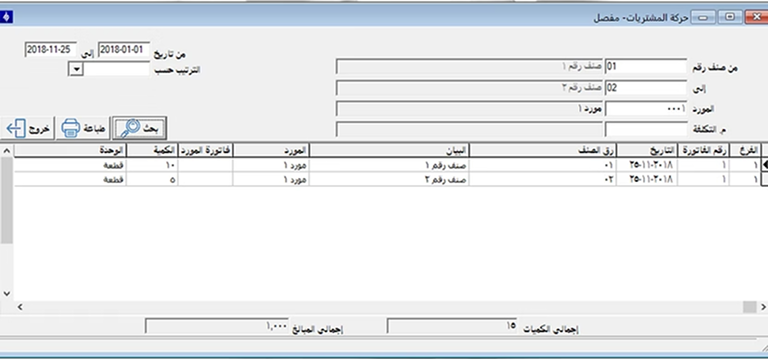
Advanced screens allow previewing reports with visual charts, statistical graphics, or printing and exporting them with high flexibility.