Do you need help?
Everything you need to know is at your fingertips. Browse guide articles and find the right answer.
Add Customers
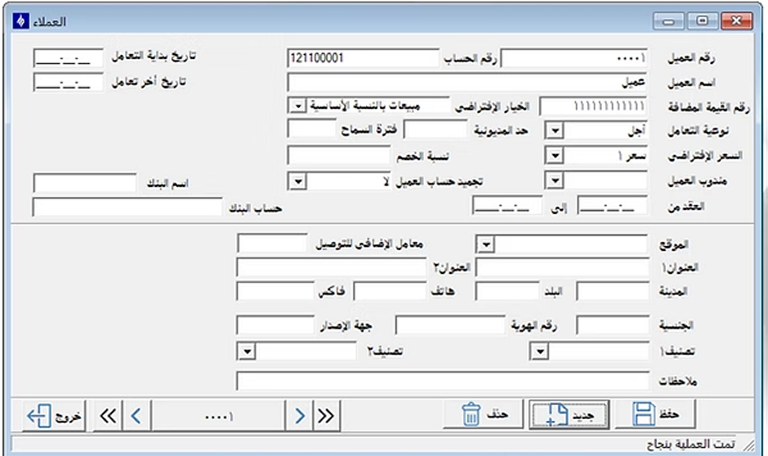
We can add and save customers from the menu Sales ← Customers ← Customer Profile, then enter the basic customer data.
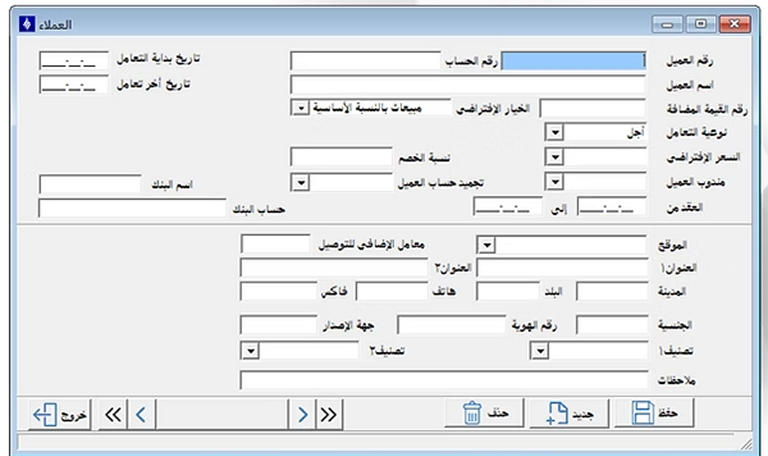
After that, we write the customer's name, contact details, and required commercial data, then click Save to complete adding the customer.
Quotation
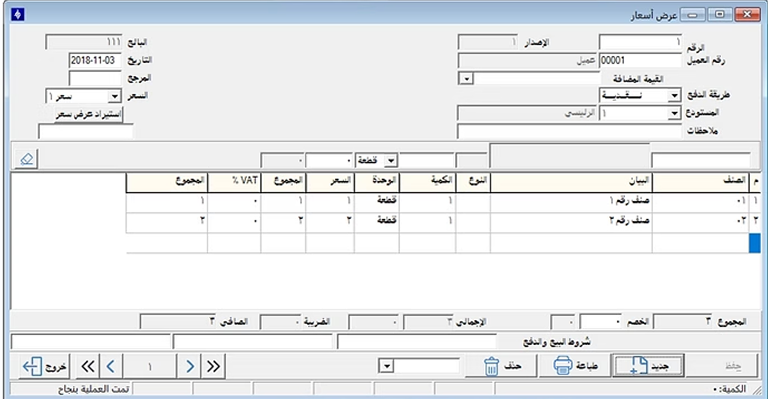
From the menu Sales ← Quotation, the price quotation is created, then select the customer, add items, quantities, and prices, and enter the required data before saving.
Sales Invoice
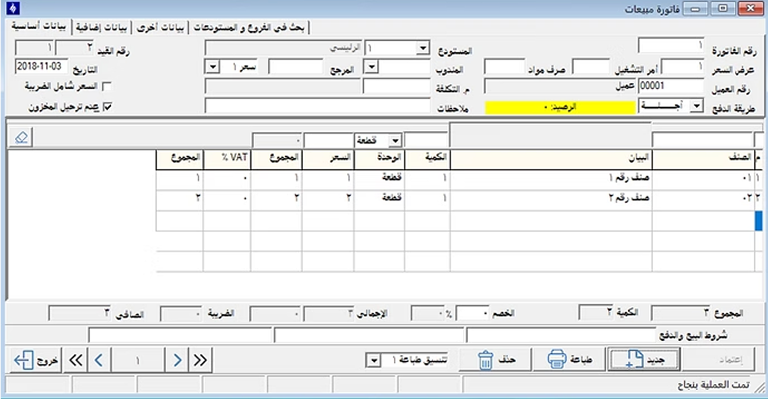
From the menu Sales ← Sales Invoice, select the customer, enter the invoice details, items, quantities, and prices, then save the invoice after completing all data.
Sales Return
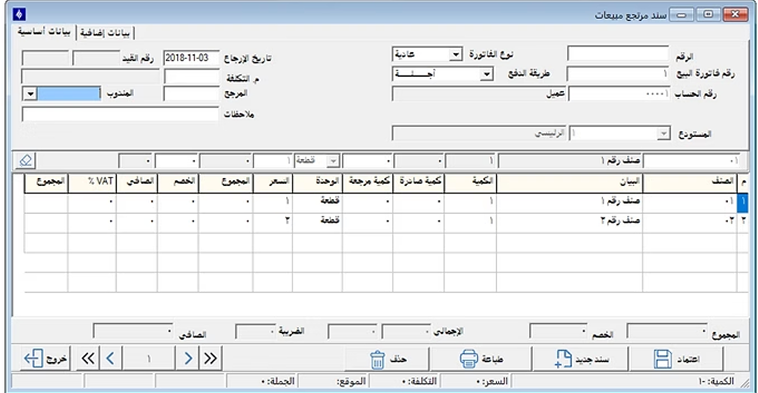
From the Sales Return screen, specify the customer and the invoice to return from, then select the returned items and quantities, complete the data, and save the process.
Open Invoices
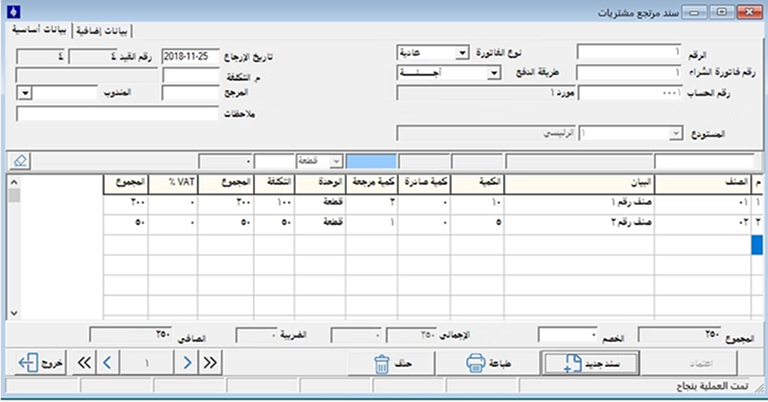
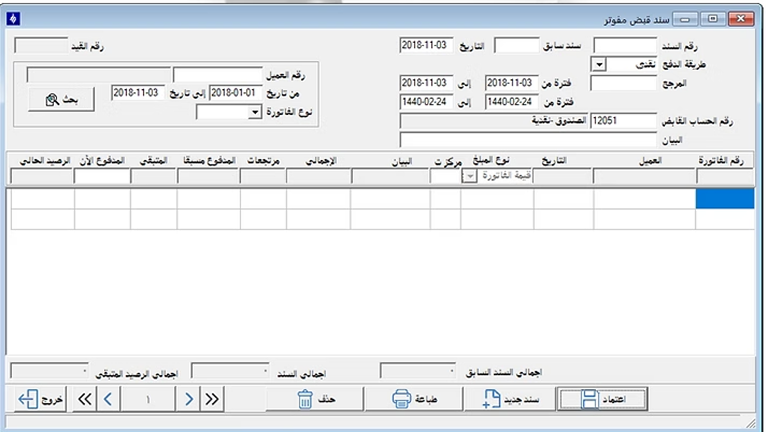
From the Open Invoices screen, you can review unclosed invoices, check customer details, invoice information, and related amounts.
Sales Reports
Through the Reports screen, we can display sales reports by period, customer, or item, specifying the required report options and then displaying the results.
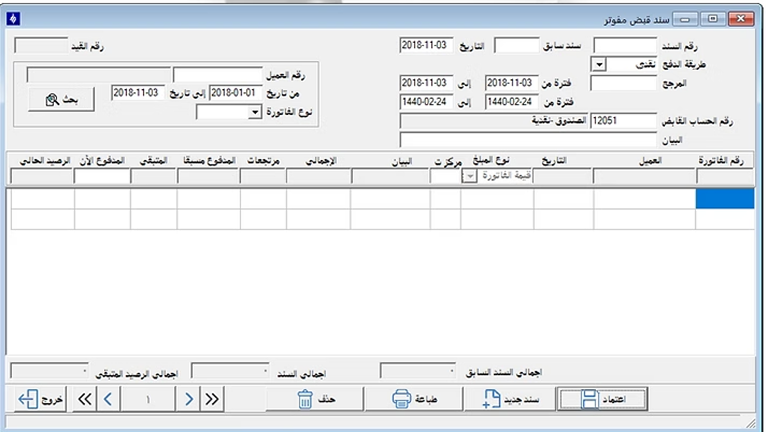
You can also review additional details and customize options to get more accurate results and analyze full sales activity.